Common Errors and How to Fix Them
"Needs a little more work..."
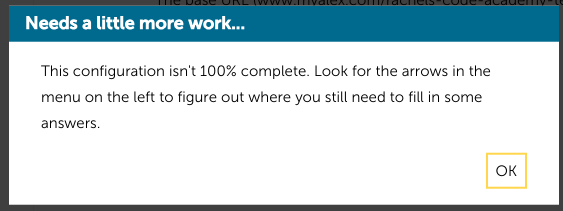
If you click the "Preview" or "Launch" button and see this message it usually means there are still fields in the configuration that need to be completed.
Follow the teal arrows along the menu to find where info might still be missing. Once all the arrows are gone, give Previewing or Launching another go.
Sometimes you might see this error with no arrows present and everything completed. Usually all that's needed to fix this is a quick browser refresh. Sometimes Builder's autosave feature can lag behind the changes made in a configuration. The info will autosave but the arrows will be lagging behind. Refreshing your browser usually kicks Builder into syncing back up.
You may see an arrow along the menu but everything appears to be completed. Double check there aren't any text notes that are over the character limit. This can be a little tricky to spot of you aren't looking for it!
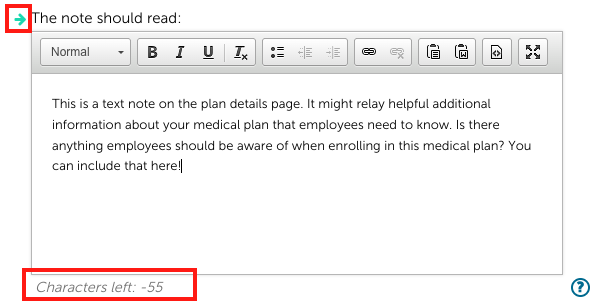
If a text note is over the character limit, keep an eye out for one of those teal arrows next to the text box and double check the character counter at the bottom of the box.
Every so often you might receive a "Needs a little more work..." error for less obvious reasons. Reach out to selfservicesupport@jellyvision.com and we'll take a peek under the hood for you!
"Unfortunately, based on what you told me, I'm not able to tell you about your benefits"
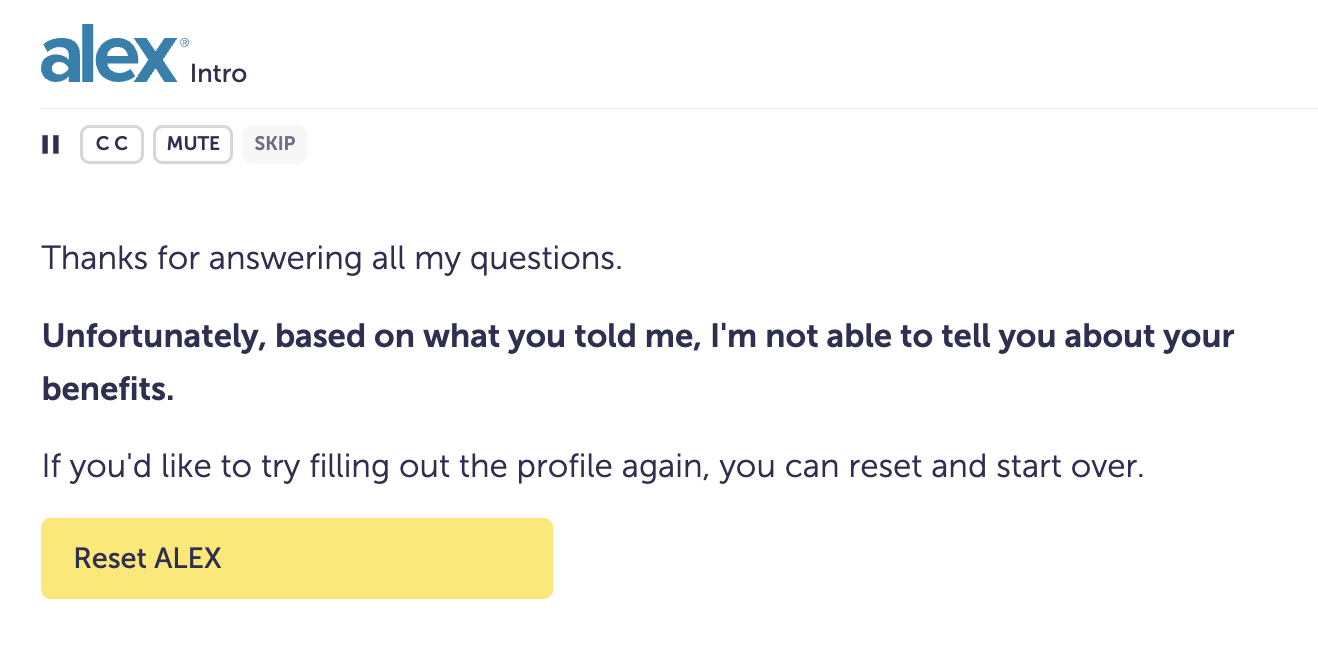
If you see this on your preview or live ALEX link, it's often due to eligibility issues in the configuration. The most common scenario is multiple plans (eligible to all employees) being configured under a module that only allows for users to be eligible for a single plan.
Medical, Dental, and Vision modules have the capability of comparing multiple plans and giving a recommendation. All other modules can only walk users through and educate them on a single plan.
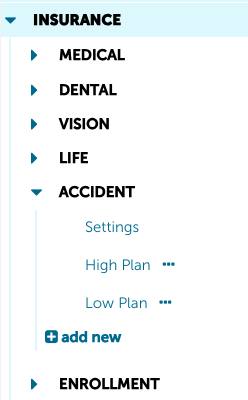
If any of these modules have multiple plans without an eligibility question routing users to a single plan, ALEX won't know which plan to send users to and shows this error. An example is configuring high and low Accident plans for employees to choose between.
Click through the menu in Builder to double check if any voluntary benefit modules have multiple plans configured without eligibility.
Check out these additional articles for steps to fix this:
Configuring Accident Plans With More Than One Level of Coverage
- The basic guidance of this article is true of any voluntary module with multiple plans configured.
Configuring Basic and Supplemental Life Offerings
Configuring Multiple Hospital Indemnity Plans
Some clients have trickier eligibility setups which can create gaps or overlaps in ALEX's eligibility logic. If you see this error and need help identifying where there could be an eligibility issue, reach out to selfservicesupport@jellyvision.com and we can help take a look!
ALEX isn't showing my changes/ ALEX is showing the current year's benefits instead of the OE benefits
Often, if you are seeing outdated benefits information on the preview or live ALEX link, it's because an answer that leads to the current year's benefits was chosen for the initial "Enrollment" question in the user profile.
When two plan years are active (typically right before and during OE), ALEX asks, "What best describes your situation?" to determine what year's benefits the user wants to see.
When reviewing and testing ALEX, be sure to choose an answer option to this question that will take you to the OE/new plan year's benefits.
For more info on how this question works/changes throughout the year check out the article below:
How does the "What Best Describes Your Situation" question work?
Another common reason for not seeing changes appear in the Preview or Live ALEX link is making the changes in Builder but not pressing the Preview or Launch/Relaunch button to push those changes to the actual URL.
Remember — Builder always autosaves your changes within Builder. But you'll need to actually Preview and/or Launch/Relaunch the configuration to sync those changes to the corresponding URL.
Check out these articles below for the step-by-step of previewing or launching your configuration:
Previewing Your Configuration
Launching/Relaunching Your Configuration
A hyperlink isn't working
The most common reason for a hyperlink pulling up an error when opened from ALEX is needing an https:// or http:// in front. If that wasn't initially included when pasting the link into Builder, try adding that and refreshing the Preview link or Relaunching to see if that fixes it.
Similarly, a link might need an https:// (with the s) instead of http://. Try adding in the s to see if that's the fix.
Next, try copying the link from Builder into your web browser to verify the link itself is accurate/up-to-date.
Sometimes all it takes is removing the link from Builder and then freshly copying and pasting it back in. Links can sometimes get corrupted being copy and pasted from point A to point B.
If the URL is in a text note, make sure you are using the chain icon under the formatting options to actually make it a hyperlink, instead of plain text.

If none of the above is working reach out to selfservicesupport@jellyvision.com and we can try to help work some magic!