
Duplicating configurations for a new customer
Click here for click-by-click instructions with screenshots of each step or read on for the key points...
The most common scenario for needing to duplicate an existing configuration for a brand new customer is having clients with very similar benefits packages and duplicating eliminates the need to start a configuration completely from scratch. You can simply edit the duplicated version to match up with your new client. Here's how to do it!
Navigate to the Customers tab in Builder and click the yellow "Create a customer" button. You'll then be prompted to enter the customer's details.
The Full Name is only used in Jellyvision's backend systems, while the Informal Name appears in the ALEX conversation.
The Customer Key is only used in Jellyvision's backend systems. It is not displayed to users anywhere in the ALEX experience.
The Customer ALEX URL is the custom portion of the ALEX URL. Most groups use a variation of the customer name in this field so the final ALEX URL will be something like https://start.myalex.com/CUSTOMERNAME
Please note: This URL is not set in stone and can be changed, but usually requires some backend adjustments. If you want to make a change just reach out to selfservicesupport@jellyvision.com.Customer Website is only used in Jellyvision's backend systems. It is not displayed to users anywhere the ALEX experience.
Employer Identification Number is optional and only used in Jellyvision's backend systems. It is not displayed to users anywhere in the ALEX experience.
Click "Create customer and return to the customer list". This will complete the customer profile and you'll move on to duplicating an existing configuration to link to this profile.
Find the configuration you'd like to duplicate and hit the "duplicate button".
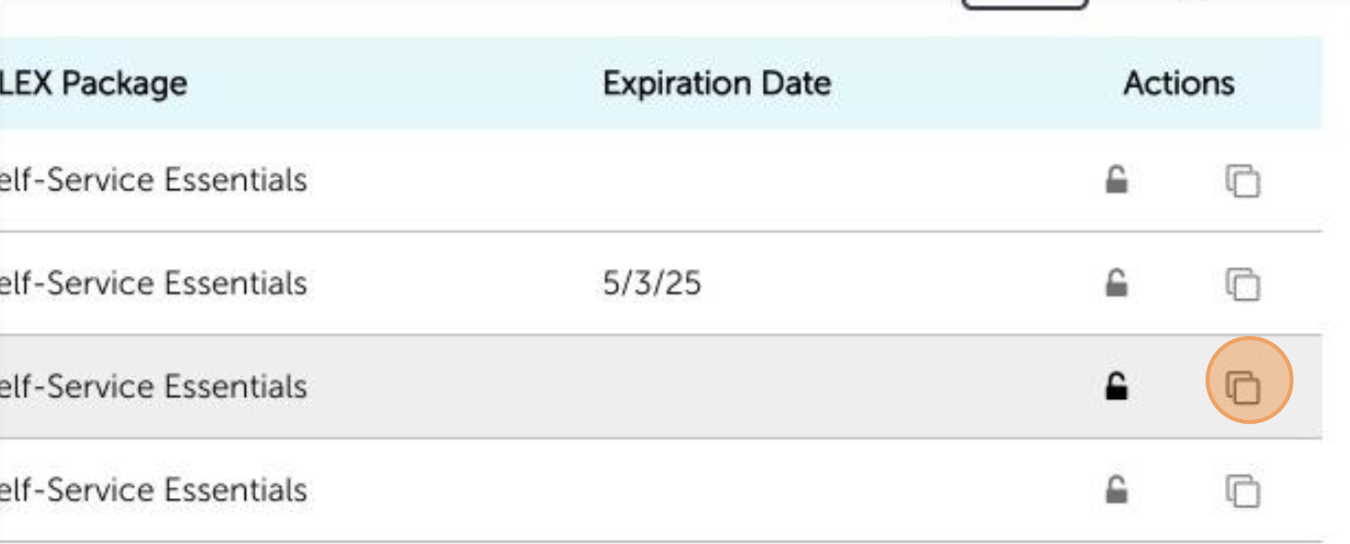
Builder will give you the option to duplicate for a new or existing customer. Choose "Existing Customer" and use the search box to select the correct customer. Click the yellow "Duplicate Configuration" button.
Choose between Self-Service Essentials or Fundamentals.
Essentials includes Benefits Counselor (audio-led), ALEX Go (English and Spanish), Benefits and New Hire Sneak Peek videos, Medicare, and Ask ALEX (AI Chat).
Fundamentals is only ALEX Go (English and Spanish). This is the text-based version of ALEX.
Select the correct plan year from the drop down and enter the eligible employee count. Don't worry if you don't have the exact number. You can update it at anytime from inside the configuration.
If you are renewing a configuration early, use the check box to shift all configured dates forward one year (ie: If the OE start date for the original configuration was 10/15/24, this will change that date in the new, duplicated configuration to 10/15/2025).
Click "Finish and start configuring details" and your new, duplicated configuration will open!